




- Client
- Dispatch
- Role
- UX/UI design
- Scope
- Desk research and proto-personas, information architecture, core workflows and interface system
- Year
- 2023
- Tools
- Figma
Context
One place to run a small service business.
Dispatch was a client project: a field-service platform for small home-service businesses, the kind that clean houses, clear junk, fix plumbing or send out a handyman. They needed one place to take bookings, plan the work, send out their crews, keep track of customers and get paid.
Field-service software already had most of these tools. The trouble was that they were spread across complicated workflows that small business owners found hard to follow, and finding out where a single job stood could mean going through several parts of the product.
So I organised Dispatch around the way these businesses work: one job, moving from the booking to the payment, with everything about it close at hand.

Problem
The work is one workflow. The software shouldn’t make it feel like five.
A typical job means taking the booking, finding a time, choosing a crew, keeping the customer updated, doing the work, invoicing and getting paid. Each of those needs its own tools, but the owner thinks of all of it as one job.
The product had to show how the steps connect and keep each one simple enough to use in the middle of a busy day. It also had two very different groups to serve: owners who plan the work and chase the money, and the crews who do the jobs and mostly need to know where to go next.
Personas
I built the personas from the specification and from what owners say about their tools.
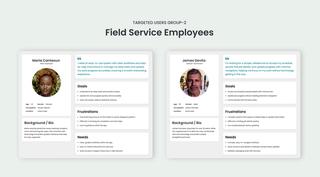
I started from the client’s product specification, which described who Dispatch was for and what they needed to get done. To see how these businesses work day to day, I searched online and read forum boards where the people who run them talk about their work and the software they use. From both, I wrote five proto-personas in two groups, three owners and two people who work in the field, each with goals, frustrations and needs, so I had specific people to check each workflow against.
The owners had found FSM and CRM tools too complicated or too expensive, and all three struggled to keep track of jobs, invoices and payments. The two in the field needed their schedule, the next job’s details and a quick way to update its status. You can see those needs in the screens that follow: a job’s details are one click from the calendar, and every job shows its progress as a row of steps.


Core workflow
One job, connected from booking to payment.
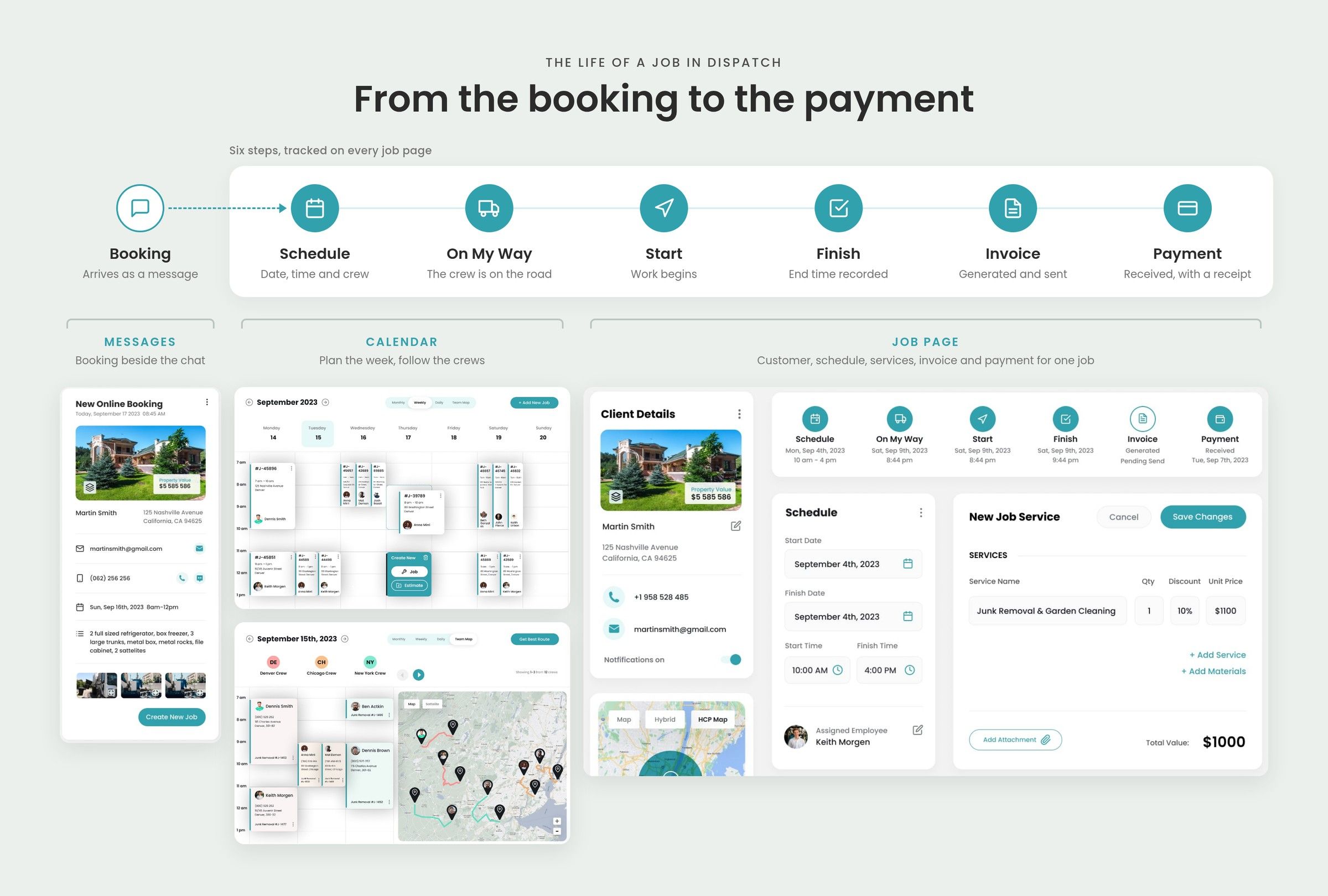
I followed a job from booking and scheduling, through assigning a team, to finishing the work and getting paid. A job can start as a message: when a customer books online, the booking details appear next to the conversation, and Create New Job turns it into a job.
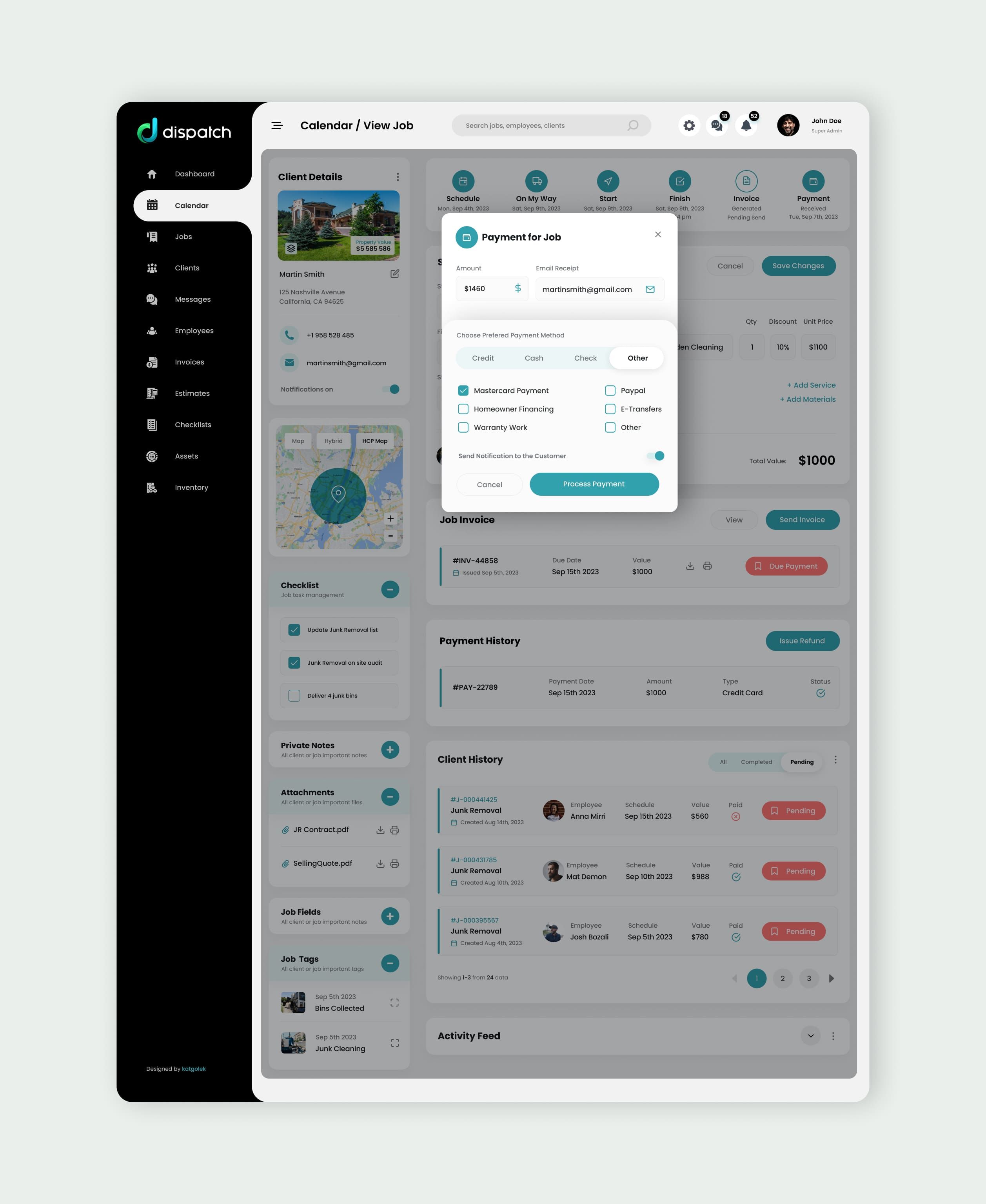
From then on, every job page has the same six steps across the top: Schedule, On My Way, Start, Finish, Invoice and Payment. Each one shows its date, or what it’s still waiting for, so anyone who opens the job can see where it stands.
The calendar, the customer’s details and history, the crew, the messages and the money all link back to the job, so you can follow it without jumping between separate parts of the app.



Scheduling and dispatch
The calendar is where jobs get planned and crews get sent out.
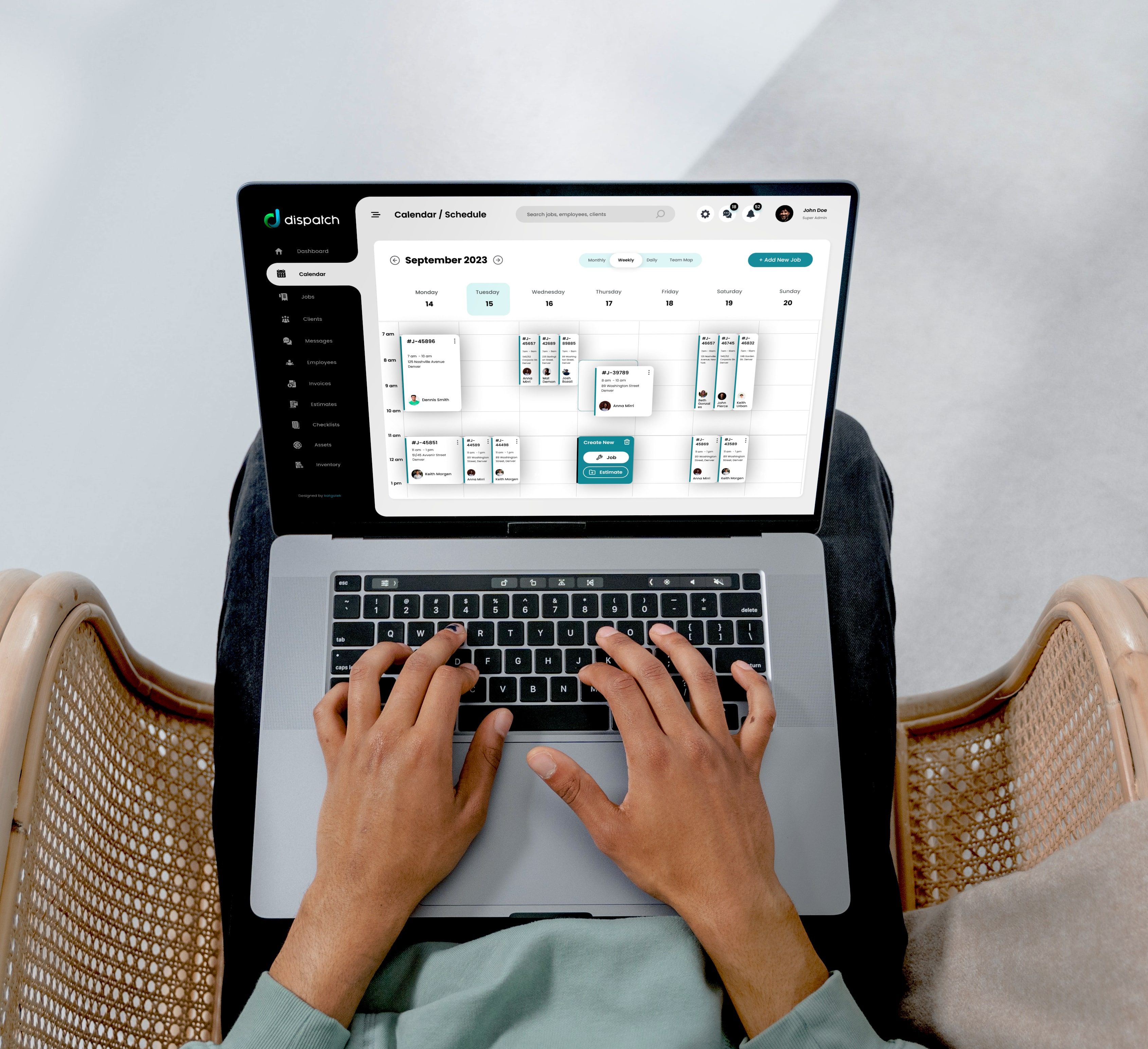
The calendar has monthly, weekly and daily views. Weekly is the one used most, so it had to be the easiest to read. Each job card shows the job number, time, address and who’s assigned, and you can drag a job to another slot or resize it to change how long it takes. An empty slot offers a new job or an estimate.
Clicking a job opens a summary on top of the calendar with the status, customer, phone number, time, address, crew and what needs doing, and buttons to call or message the customer or the crew.
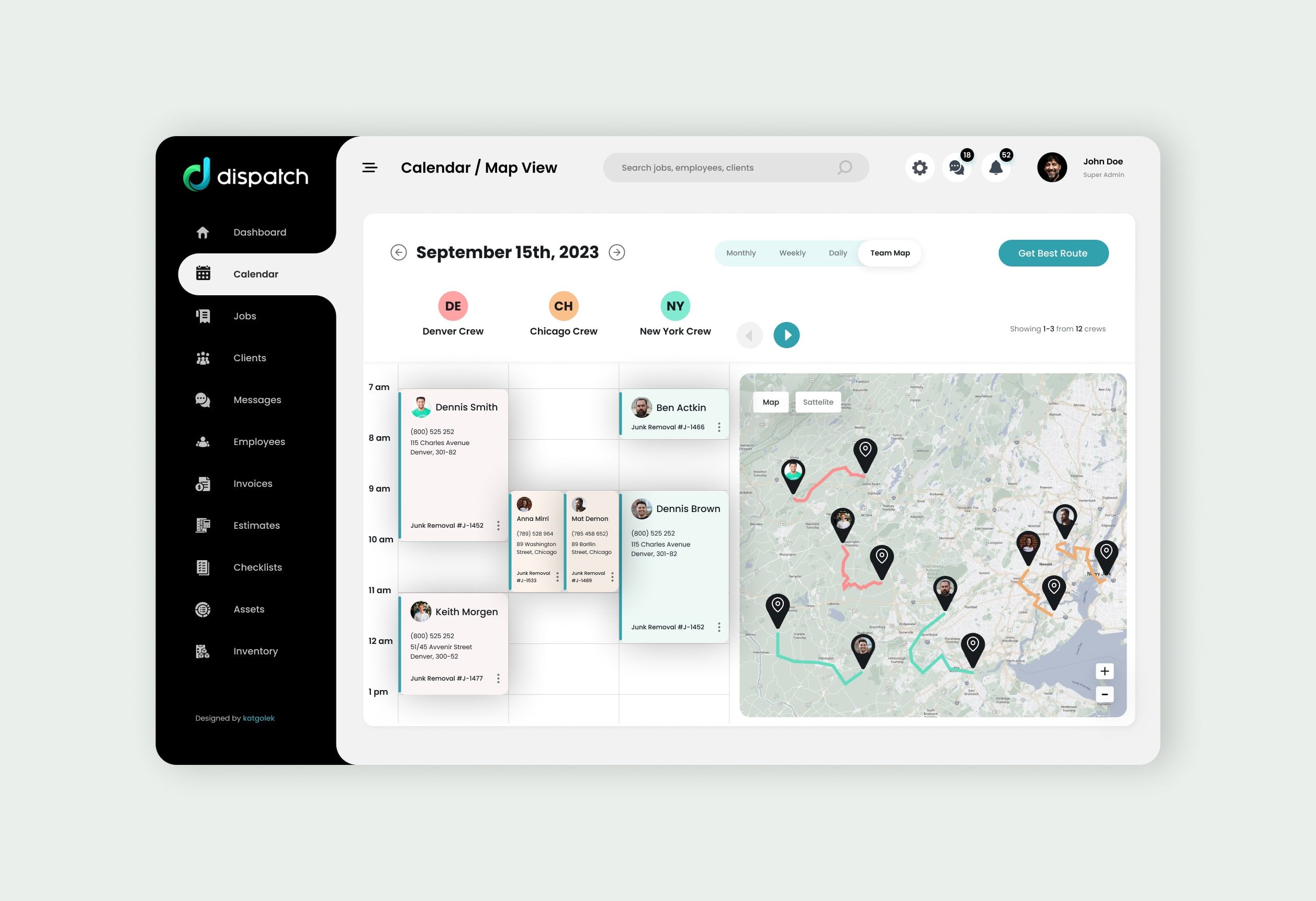
Team Map puts each crew’s day next to a map of their route. Every crew has its own colour, so the routes are easy to tell apart, and Get Best Route works out a route between the jobs.



Job page
Everything about a job, from the address to the payment, on one page.
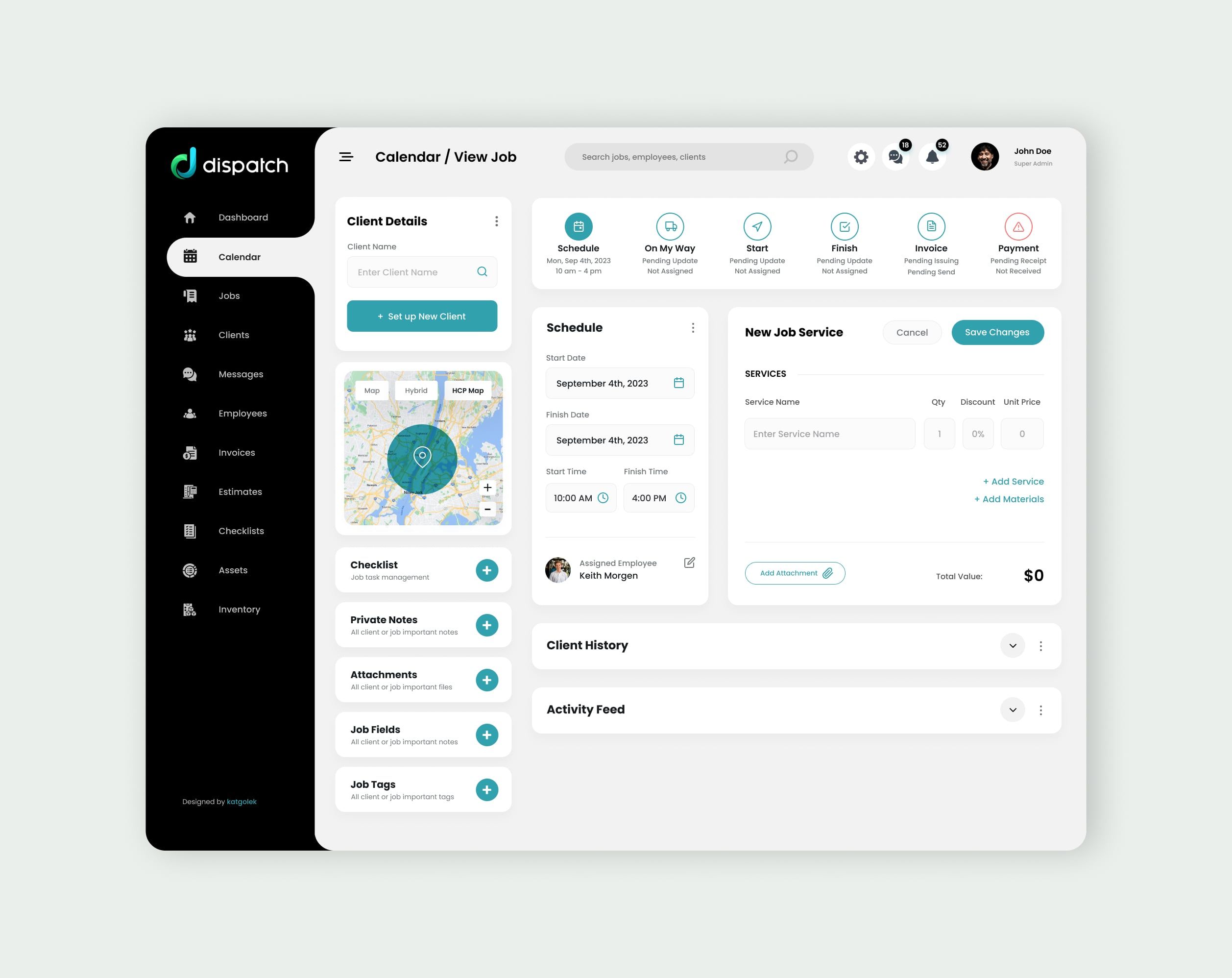
The job page holds the whole story of a job. On the left are the customer, the property and a map. The main column has the steps, the schedule and assigned employee, the services and materials with their prices, the invoice, the payment history, the customer’s earlier jobs and an activity feed of who did what and when.
A new job starts almost empty. Only Schedule is done, the other steps wait for an update, and the panels for checklists, notes, attachments, job fields and tags stay closed until there’s something to put in them. The page fills up as the job moves along.
Steps are completed from the job page in short dialogs. Finish Job stops the duration tracking and records the end time. Payment takes the amount and method, from card or cash to homeowner financing or warranty work, and emails the customer a receipt. Both can let the customer know straight away.







Dashboard
Give the owner a useful picture of the business at a glance.
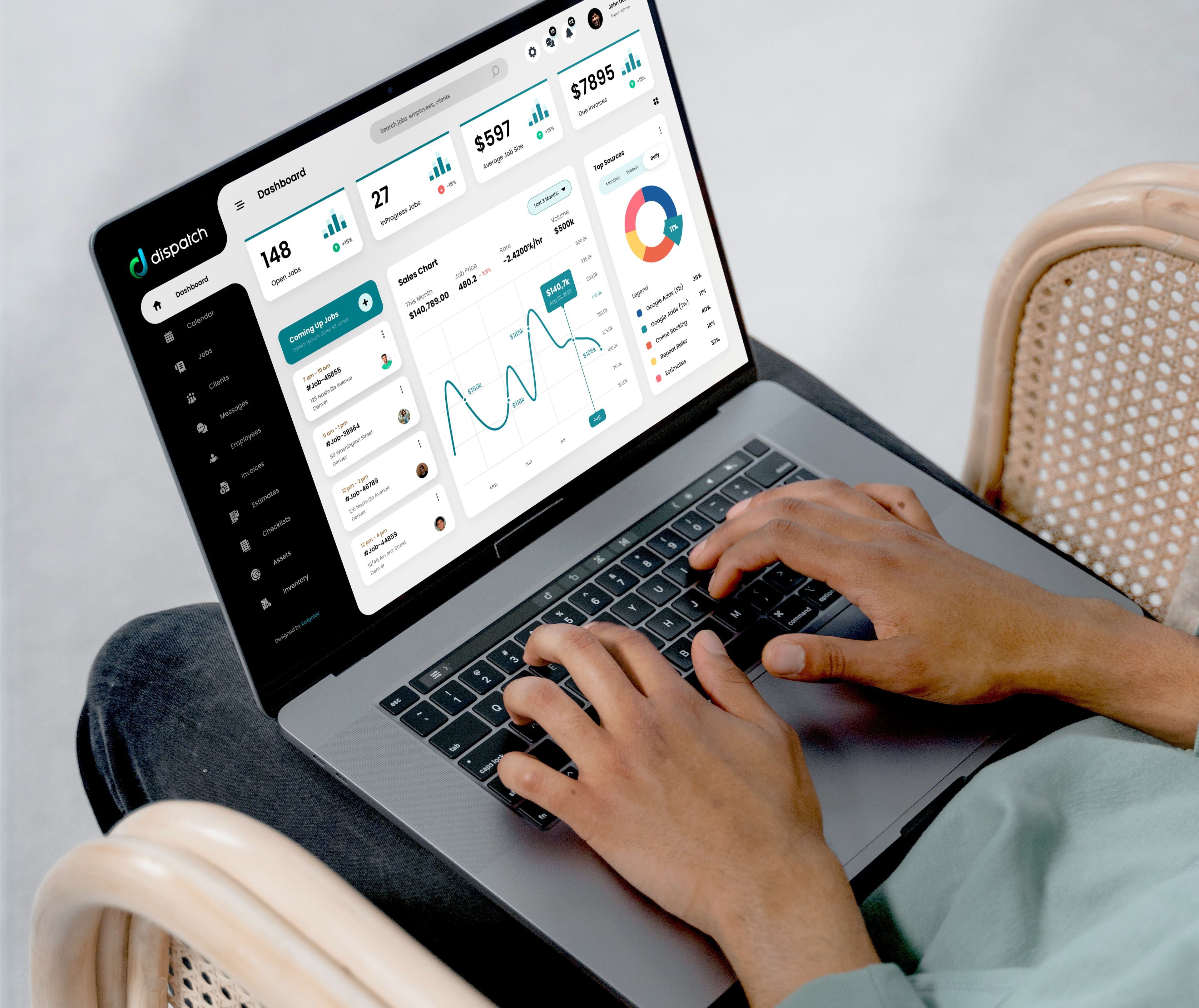
The dashboard is the owner’s view across every job, and it brings together numbers that would otherwise mean visiting several parts of the product. The first thing an owner wants to know is what’s on today and what needs attention, so that comes first. How the business is doing comes after.
The top row counts open jobs, jobs in progress, the average job size and due invoices, each with its trend. Under it, the next jobs coming up sit beside a sales chart and a breakdown of where the work comes from: ads, online bookings, repeat referrals and estimates.
The sales chart and the sources can each be switched to a different time range, so the same panel works as a snapshot or as a trend. It answers a need from the personas: Mike, the most experienced owner, wanted reporting on how the business was doing.


Product structure
Make a complex system predictable.
Dispatch has eleven areas in its sidebar: Dashboard, Calendar, Jobs, Clients, Messages, Employees, Invoices, Estimates, Checklists, Assets and Inventory. Every screen uses the same layout, with the sidebar on the left and a top bar that searches jobs, employees and clients from anywhere, so moving to a new area doesn’t mean learning a new page.
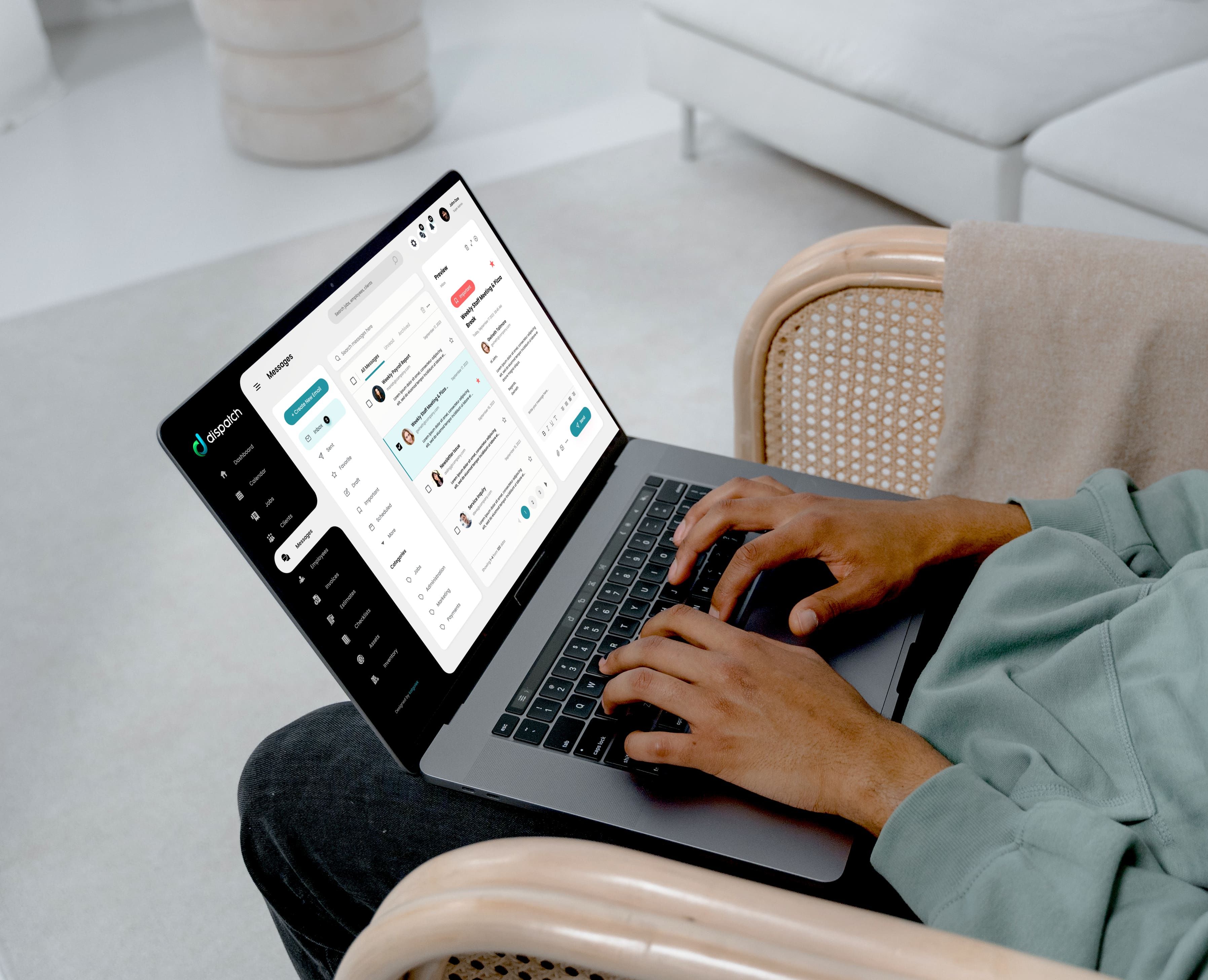
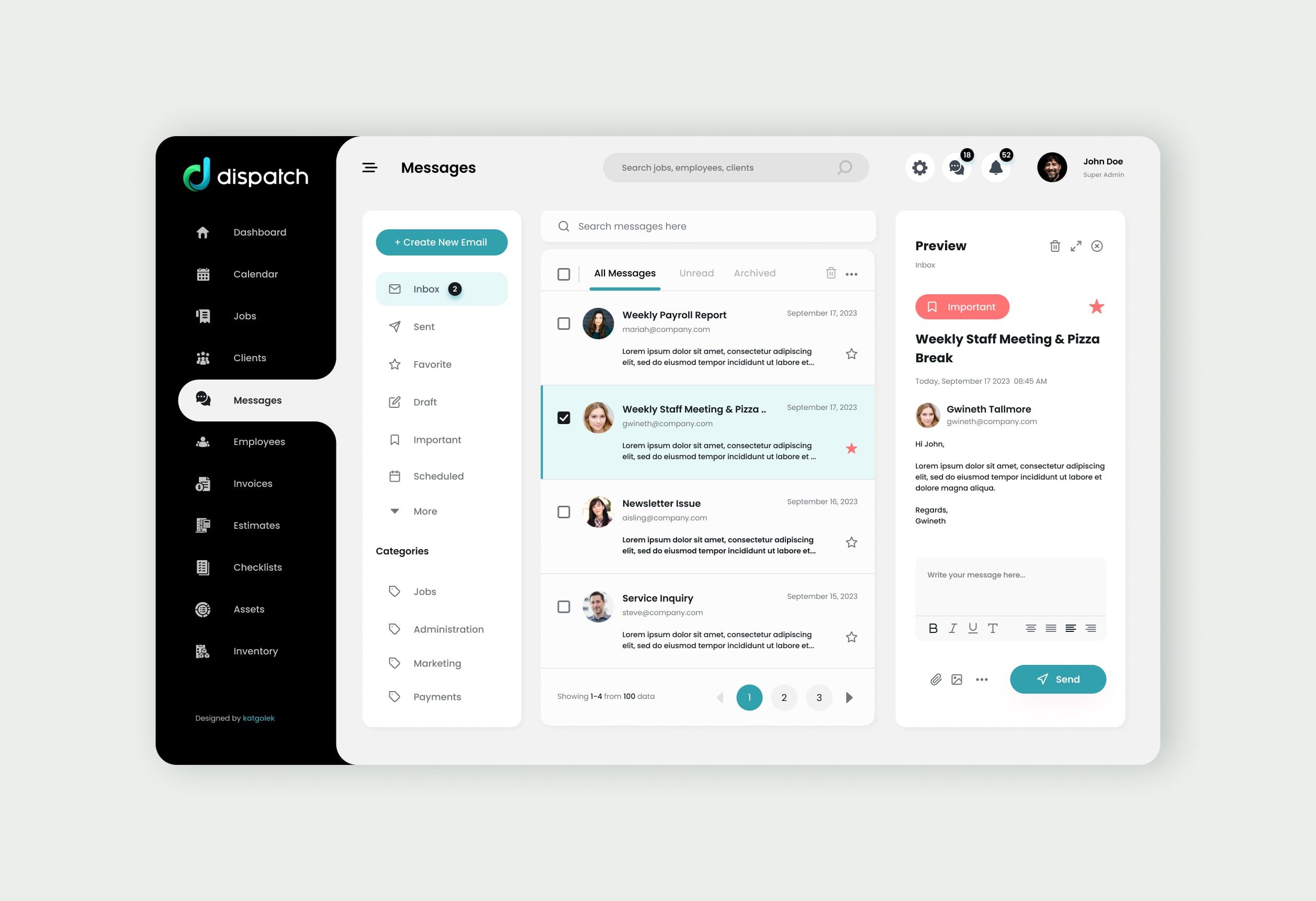
The inbox works the same way as the rest. Messages with staff and customers are filed under Jobs, Administration, Marketing and Payments, and open in a preview pane next to the list.
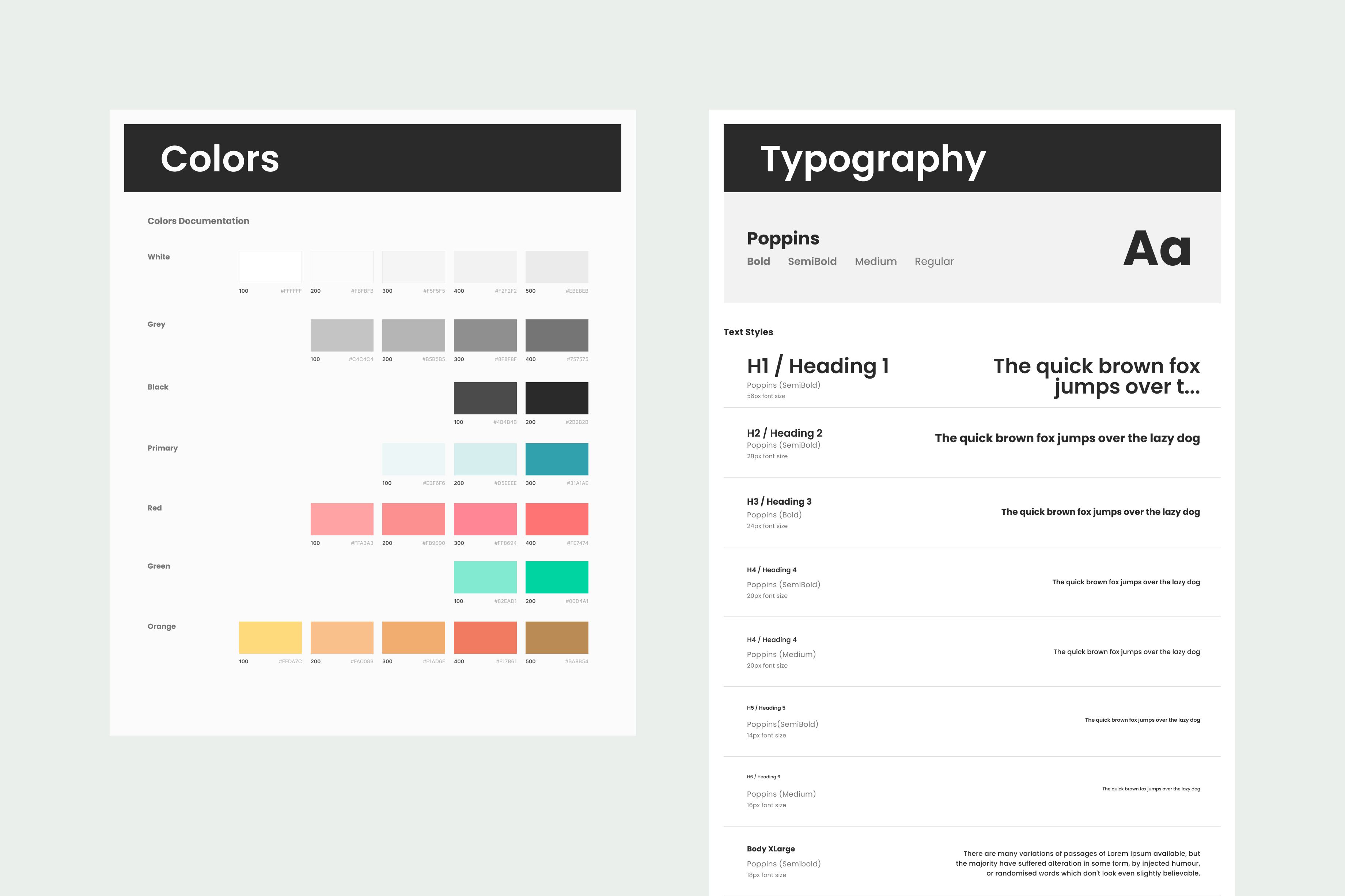
I built the interface from a Figma component library: colour ramps for the teal primary and the supporting colours, a Poppins type scale, and components for every repeated part, from the top bar, sidebar and cards to the dialogs, charts, invoice and payment cards and filter tabs. The job progress bar is a single component, drawn in each of its states.





Outcome
A connected B2B product rather than a collection of business tools.
The design covers the dashboard, scheduling and dispatch, job management, customers, messaging, the crews and the money side of each job, all in one product.
What holds it together is that the job stays in front of you as it moves through the business, from the booking in the inbox to the payment on the job page. The screens are arranged around it.
The goal throughout was simple: a system with this much functionality should still feel predictable from the first click.